Why useful AI answers get lost in chat
Chat is built for a sequence of questions and replies. That makes it good for exploring an idea, asking follow-up questions, and generating possibilities.
It is less useful when you need to return to five strong answers from a much longer conversation. The valuable material sits beside abandoned directions, repeated explanations, corrections, and unrelated questions.
The real problem: chat is not a document workspace
A chat thread records the order in which you asked questions. A document needs an order that makes sense to its reader.
That difference creates familiar problems:
- the best answers are buried among weaker or exploratory responses;
- related material appears in different parts of the conversation;
- useful passages are copied into several temporary files;
- headings and sections have to be rebuilt by hand;
- the same point is saved more than once; and
- the final document becomes a patchwork of clipboard fragments.
The problem is not that chat failed to produce text. The problem is that the useful text still needs a place, a purpose, and a structure.
When copying AI answers manually is enough
For one or two short answers, manual copy and paste is often the simplest option. You can keep the process tidy with a basic scratch document:
- Copy only the answers that support your goal.
- Add a descriptive heading above each saved answer.
- Keep source notes beside claims that need checking.
- Remove repeated material as you collect it.
- Move the selected pieces into the final document structure.
- Rewrite and verify the result before sharing it.
This is usually enough for a small task. It becomes harder to manage when you are collecting answers over time, working with source material, or building a document with several sections.
When saved answers become working material
An answer becomes working material when it contributes to a larger output: a report section, a project brief, a research summary, a checklist, a memo, or a draft.
Saving answers selectively changes the role of chat. Instead of treating the whole conversation as the project, you keep the pieces that matter and organize them around the document you intend to finish.
That means the question is no longer “Where did the AI say that?” It becomes “Which section does this support, and what does it need before it belongs in the draft?”
A better workflow: answer → save → collect → assemble → export
A saved-answer workflow gives each useful response a clear path from conversation to document.
- Ask focused questions. Work from your goal and source material rather than requesting an entire final document at once.
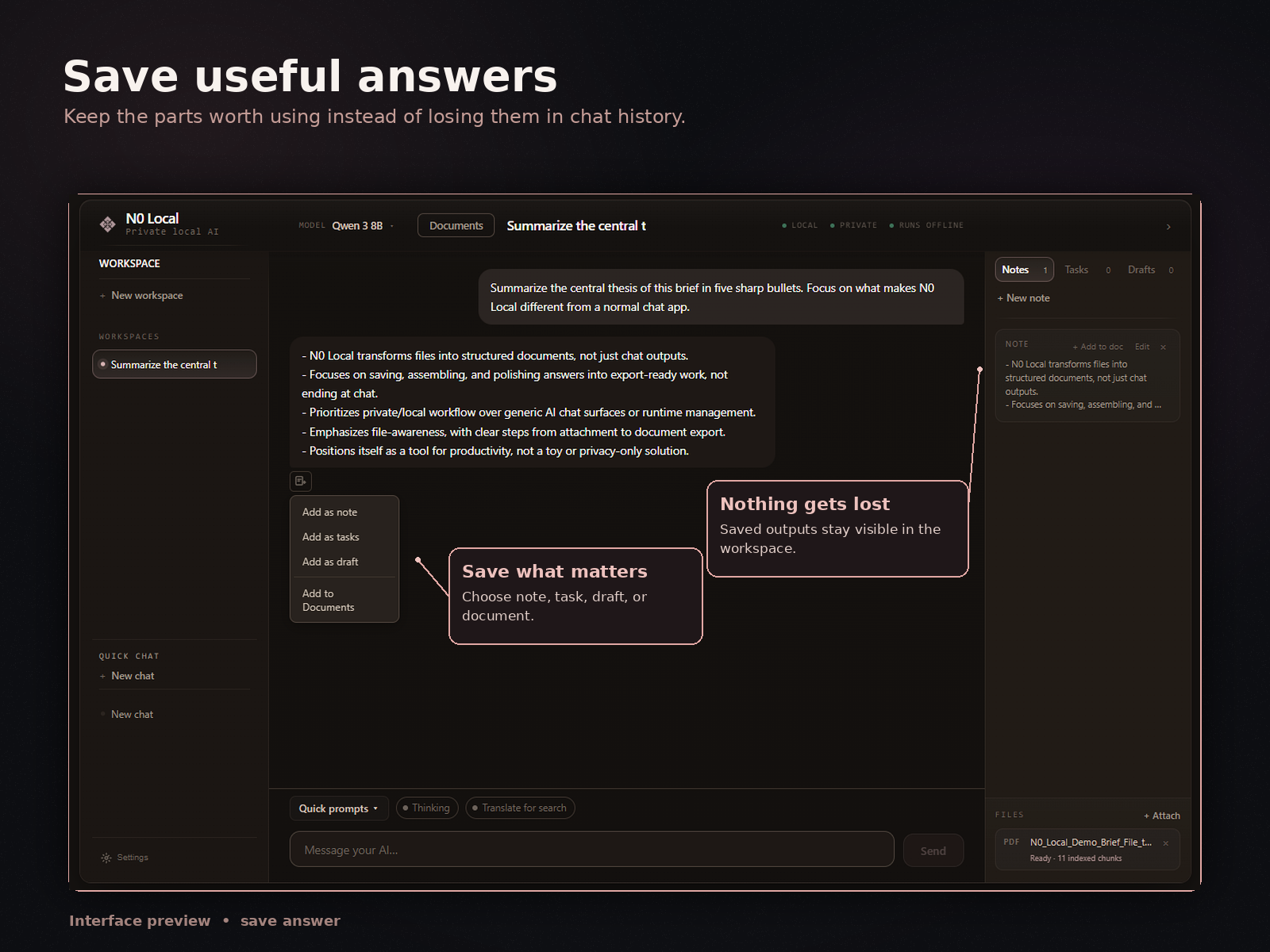
- Save useful answers. Keep the responses that add evidence, explanation, structure, or a draftable piece.
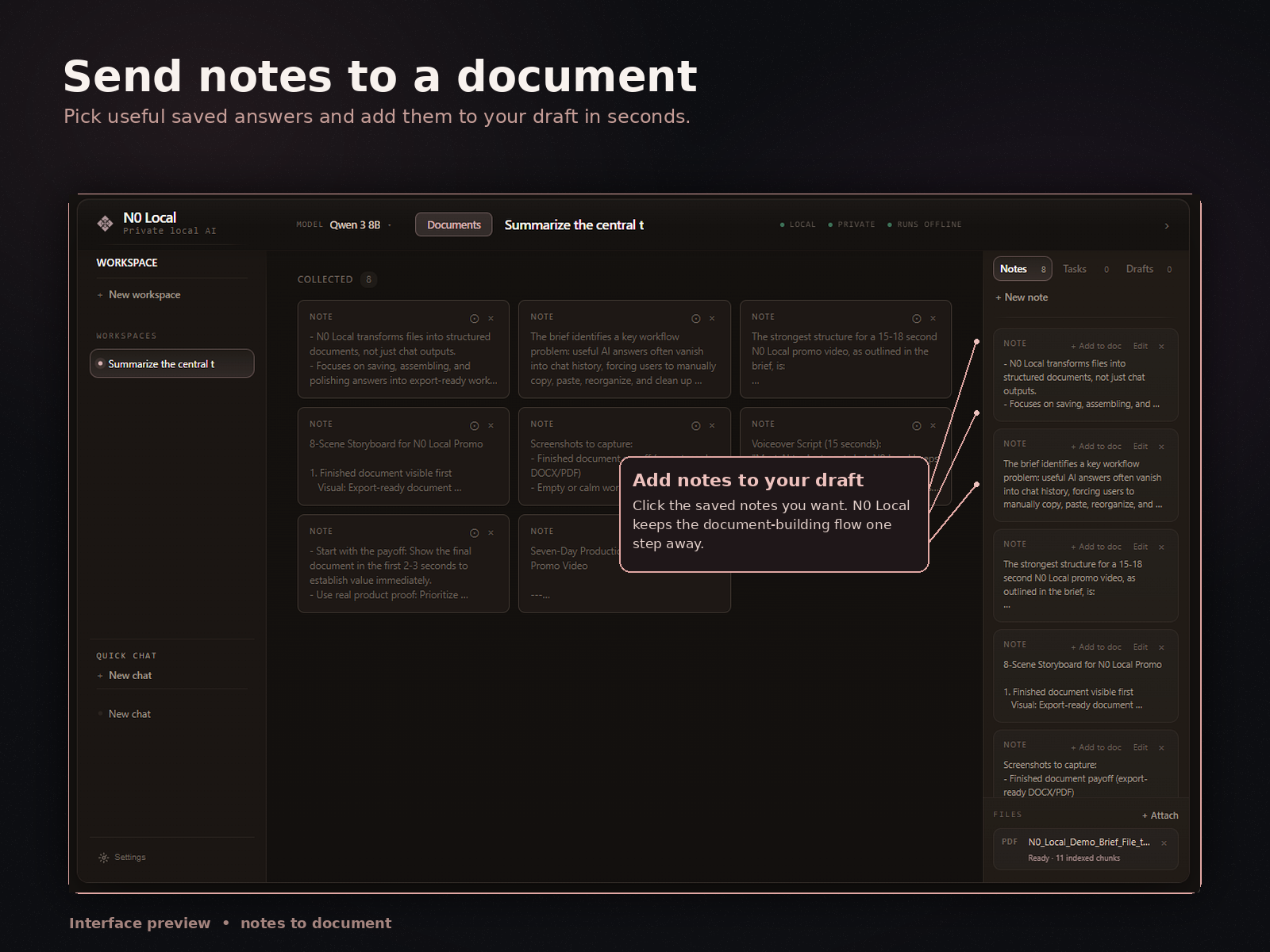
- Collect related outputs. Bring together the saved answers that support the same document or section.
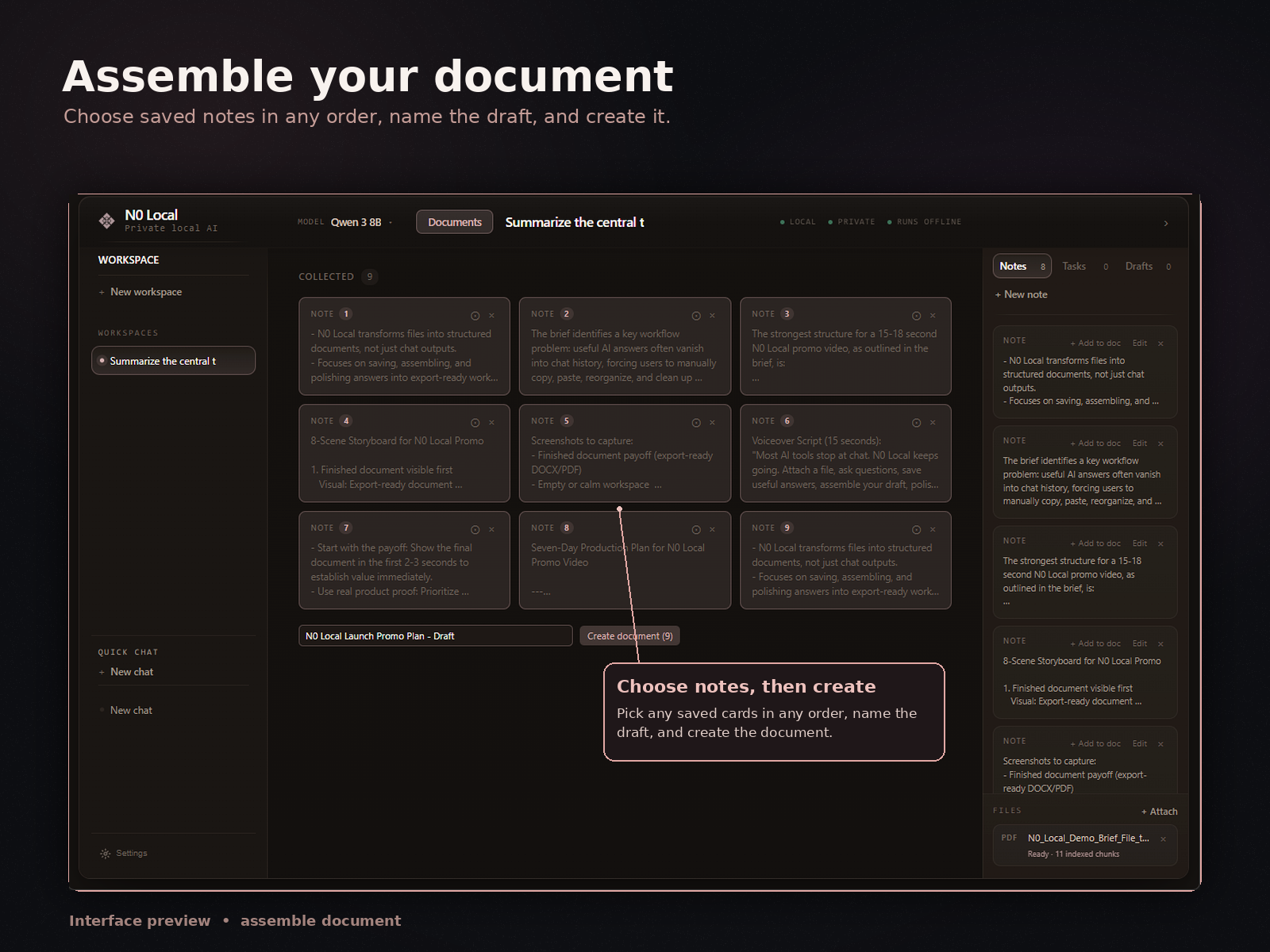
- Organize around the goal. Group the material under headings that make sense for the intended reader.
- Assemble and edit a draft. Turn the selected pieces into a connected document, removing repetition and filling gaps.
- Review and verify. Check important claims against your sources and rewrite the document in your own final voice.
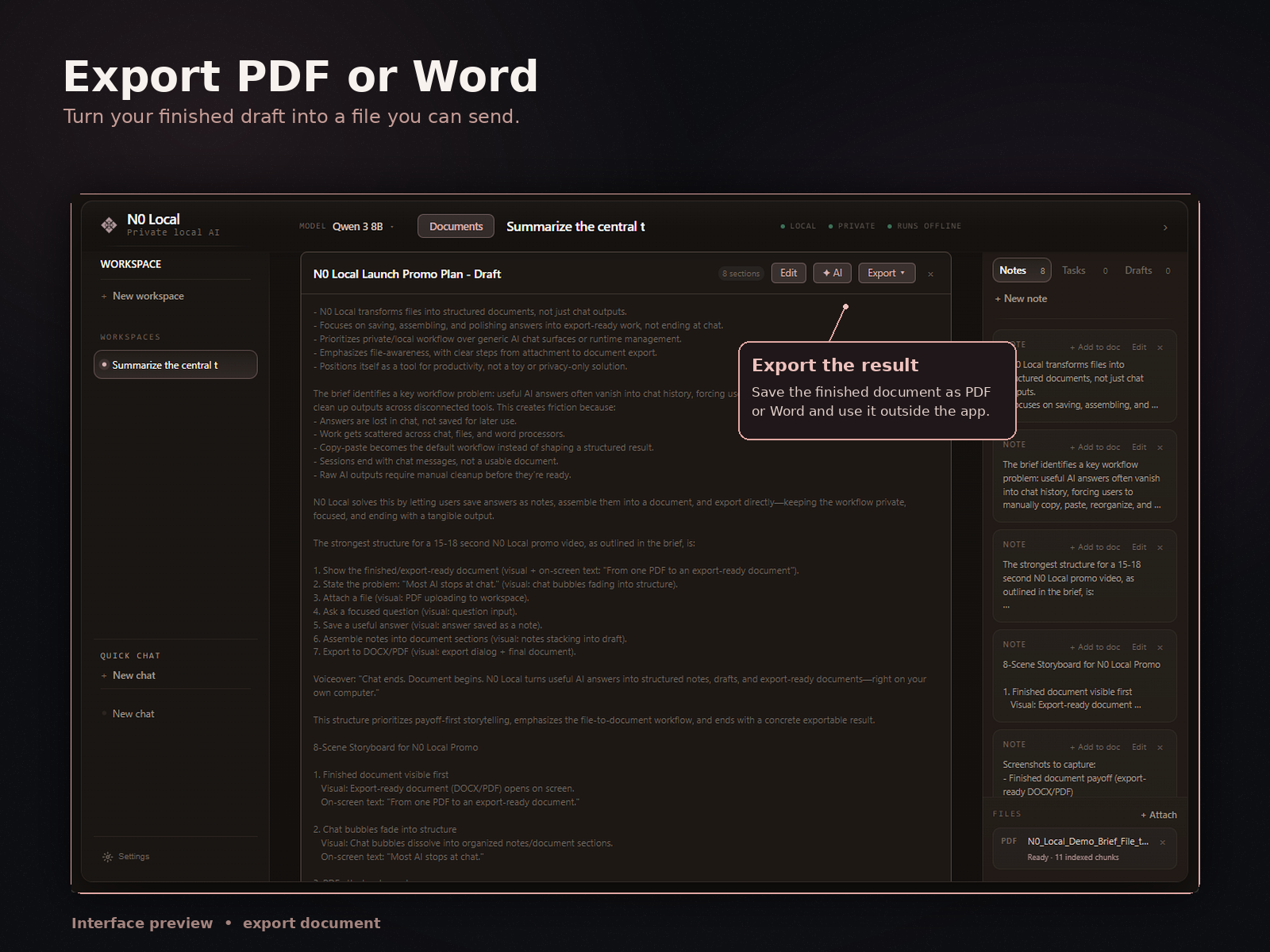
- Export to Word or PDF. Move the reviewed document into the format you need for further editing, sharing, or delivery.
The workflow keeps chat useful for discovery while giving the selected answers a more durable role in the work.
See saved answers become a real document
N0 Local is designed around the path from a useful answer to a document you can edit and export. Save the outputs worth keeping, assemble them into a draft, and export after review.
How N0 Local helps turn AI answers into documents
N0 Local is a private local AI workspace for Windows. It helps you attach files, ask AI questions, save useful answers, collect saved outputs, assemble a real document, edit it, and export to Word or PDF.
You can work with source material such as PDFs, Word documents, notes, drafts, and reports, then keep the answers that help move the document forward.
N0 Local is its own workspace. It does not automatically import ChatGPT or Claude history or capture answers from external chat apps. The saved-answer workflow happens inside N0 Local.
Most AI tools stop at chat. N0 Local helps useful AI answers become building blocks for real documents.
7-day free trial. No monthly subscription after purchase.
Useful document types for saved AI answers
The workflow is most helpful when several answers need to contribute to one structured result:
- Reports: collect findings and explanations under a clear section structure.
- Briefs: bring context, options, and recommendations into a concise document.
- Research summaries: arrange source-based answers around themes or questions.
- Memos: combine analysis, decisions, and next steps for a specific audience.
- Checklists: collect actions or requirements, then verify them against the source material.
- Draft articles: organize explanations, examples, and supporting material before rewriting the full piece.
For narrower workflows, see how to turn AI answers into a Word document or ask questions about PDFs and save the useful answers.
Honest limitations
Saving an AI answer does not make it accurate, complete, or ready to publish. AI can miss context, repeat an unsupported assumption, or produce wording that does not fit the intended reader.
N0 Local does not guarantee perfect writing, formatting, or citations. You should review, edit, and verify important facts, names, numbers, quotations, and conclusions before using or sharing the document.
The workflow helps you manage useful material and assemble a draft. It does not replace your judgment, subject knowledge, or responsibility for the final result.
FAQ
Can I save useful AI answers in N0 Local?
Yes. N0 Local lets you save useful AI answers inside the workspace so they can become part of the document you are building.
Can I collect multiple AI answers before building a document?
Yes. You can save multiple useful answers, collect the outputs that support your goal, and arrange them before assembling a document.
Can I turn saved answers into a Word or PDF document?
Yes. You can collect saved answers, assemble and edit a document, then export it to Word or PDF for further editing or sharing.
Does N0 Local automatically import my ChatGPT or Claude history?
No. N0 Local does not automatically import your ChatGPT or Claude history or capture answers from external chat apps. It is its own workspace for asking questions and saving useful outputs.
Does N0 Local replace editing and review?
No. You should review, edit, and verify important claims before using or sharing a document. N0 Local helps with the workflow, but it does not replace your judgment.
Is N0 Local just another AI chatbot?
No. N0 Local is a private local AI workspace for Windows. It is built around files, saved answers, document assembly, editing, and Word or PDF export rather than chat alone.
Give useful AI answers a place in the document
Use N0 Local to save useful AI answers, collect the pieces that matter, assemble a real document, and export it to Word or PDF from your Windows PC.
7-day free trial. No monthly subscription after purchase.