Why research notes get stuck before becoming a draft
Research creates fragments. You may have highlights in PDFs, comments in Word documents, rough notes in separate files, copied snippets, useful AI answers, and half-formed ideas in chat history.
Each fragment can be useful on its own. The difficulty is turning all of them into a document with a clear purpose, order, and argument.
The real problem: useful material is scattered
A pile of notes is not yet a draft. Notes record findings, questions, quotations, ideas, and reminders. A draft needs sections, transitions, priorities, and a reader in mind.
Assembly becomes harder when your material is spread across several places:
- important findings are buried among exploratory notes;
- related ideas live in different files or chat threads;
- copied snippets have lost their surrounding context;
- several notes repeat the same point in different words;
- you have useful material but no section structure; and
- moving everything into a document becomes a second research project.
The goal is not to keep every fragment. It is to identify the material that supports the document you are trying to write.
When manual note assembly is enough
For a short piece with a small number of notes, a simple manual process may be all you need:
- Write a working heading for each section.
- Move the relevant notes beneath those headings.
- Remove duplicates and material that no longer serves the goal.
- Mark facts or quotations that need to be checked.
- Rewrite the fragments into connected paragraphs.
- Read the draft from the audience's point of view.
This approach works well when the material is limited and already lives in one place. The overhead grows when sources, saved answers, and draft sections are spread across several tools.
When you need a workspace instead of another chat tab
Chat can help you explore a source, test an explanation, summarize a section, or think through an outline. But a chat thread does not automatically become the document you need.
A workspace becomes useful when you are returning to multiple sources, asking a series of focused questions, keeping only selected answers, and building a document over more than one sitting.
At that point, the important task is no longer generating more text. It is managing the path from source material to a coherent working draft.
A better workflow: notes → saved answers → draft → export
A clear workflow separates research, selection, assembly, and review. Each stage has a different job.
- Collect source material. Bring together the PDFs, Word documents, notes, drafts, and reports relevant to the project.
- Ask focused questions. Explore specific themes, gaps, comparisons, or sections instead of asking for an entire final document at once.
- Save useful answers. Keep the responses that add something valuable to the document you are building.
- Group material by section. Arrange notes, findings, and saved outputs around a working outline.
- Assemble a working draft. Turn the selected material into a document with a beginning, sequence, and intended reader.
- Review, edit, and verify. Rewrite for clarity, check important claims against the sources, and add your own judgment.
- Export to Word or PDF. Move the draft into the format you need for further editing, sharing, or delivery.
The result is still a working draft. Its value is that the useful research has moved out of scattered fragments and into a structure you can improve.
See how saved answers become a working draft
N0 Local gives useful research outputs a path into the document you are building. Save what matters, assemble the selected material into a draft, and export after you have reviewed and edited it.
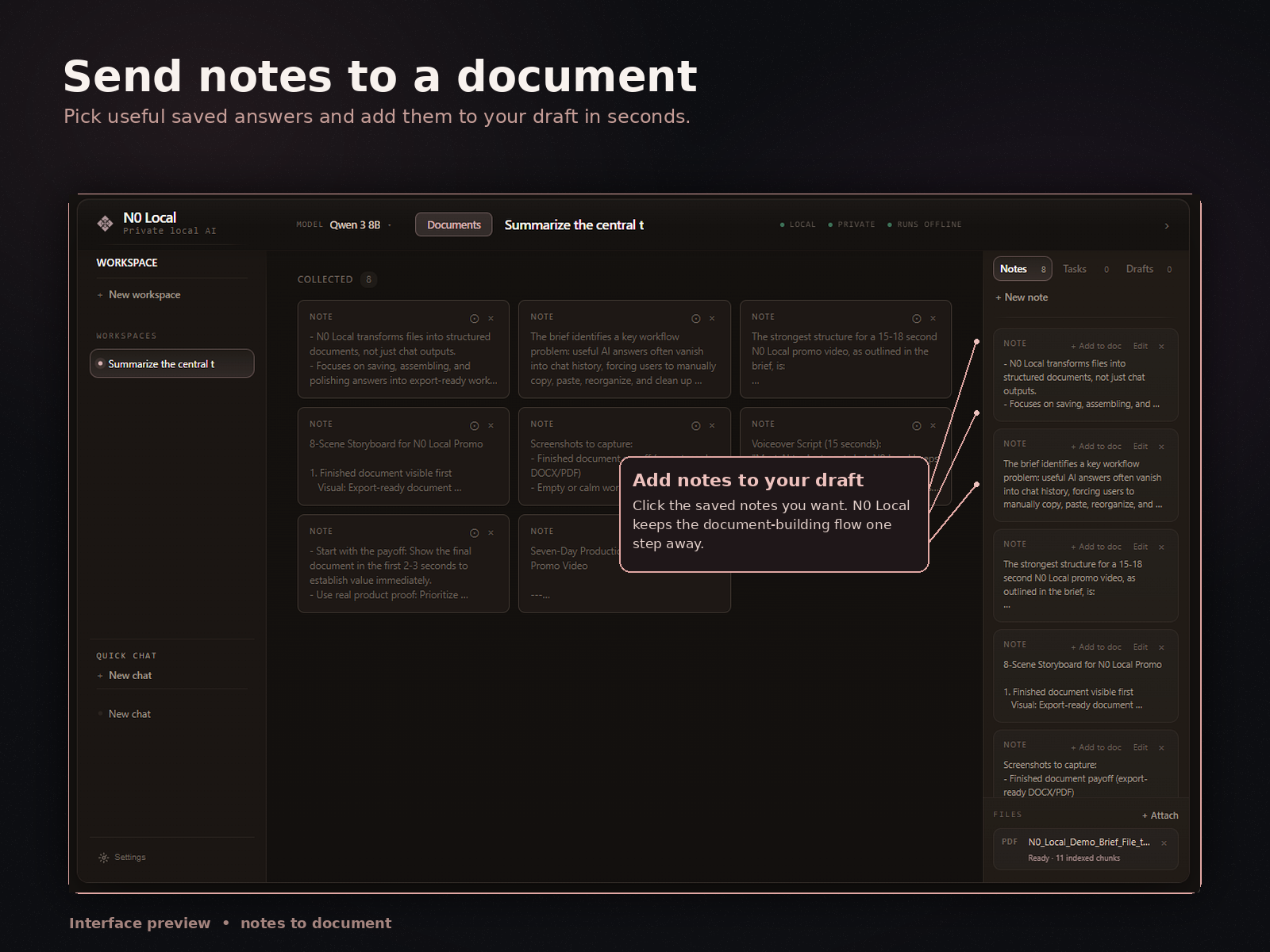
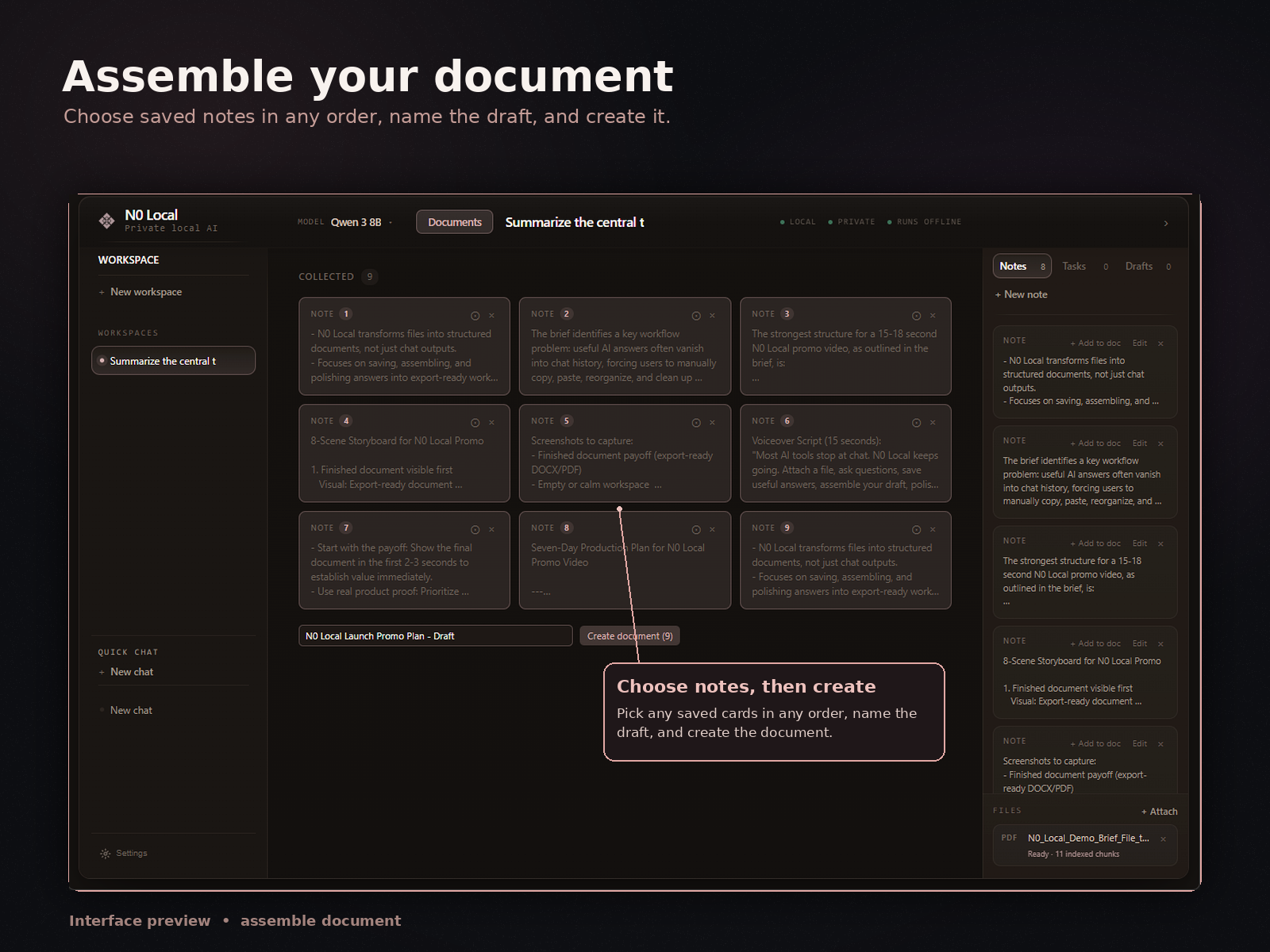
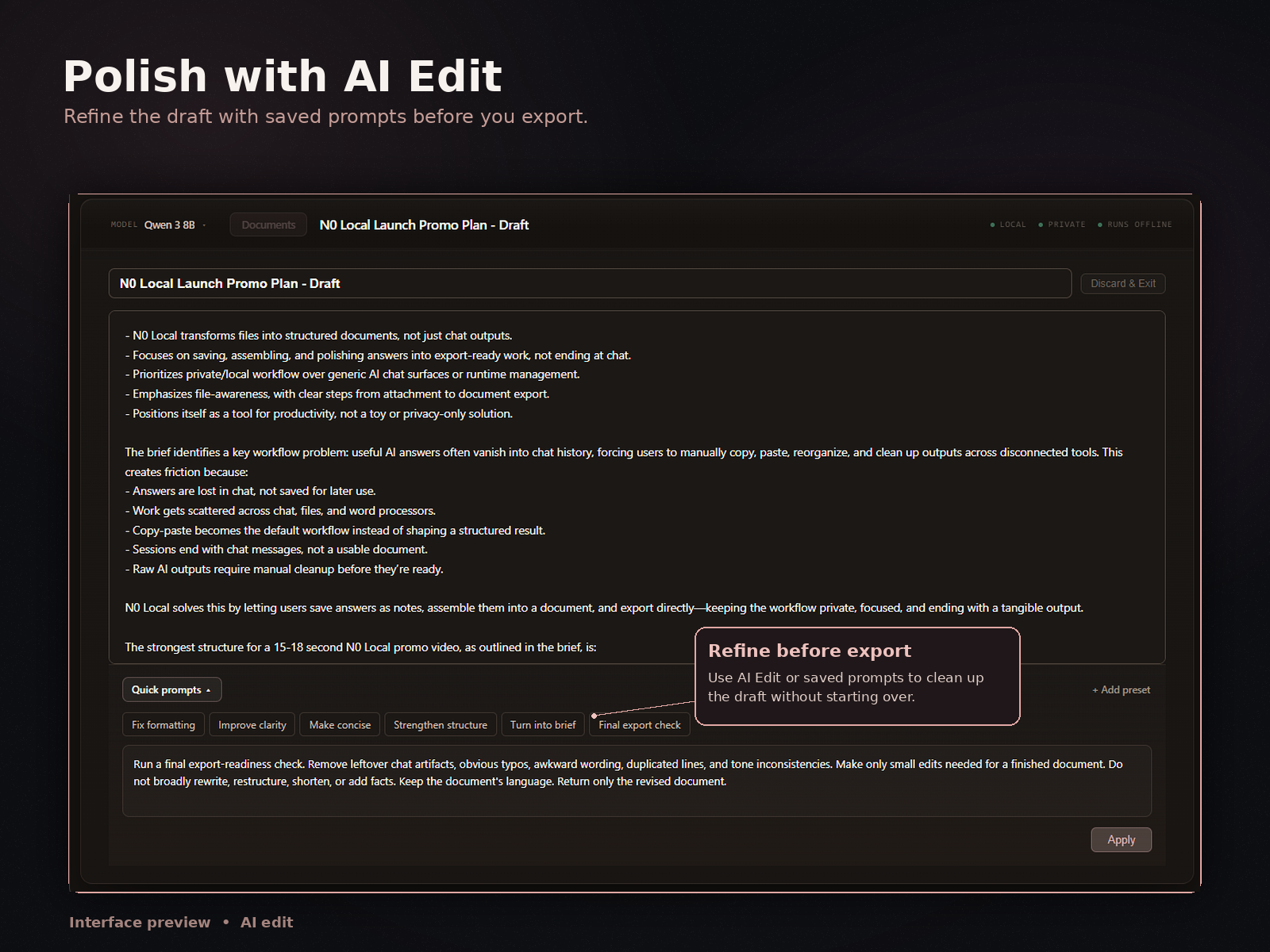
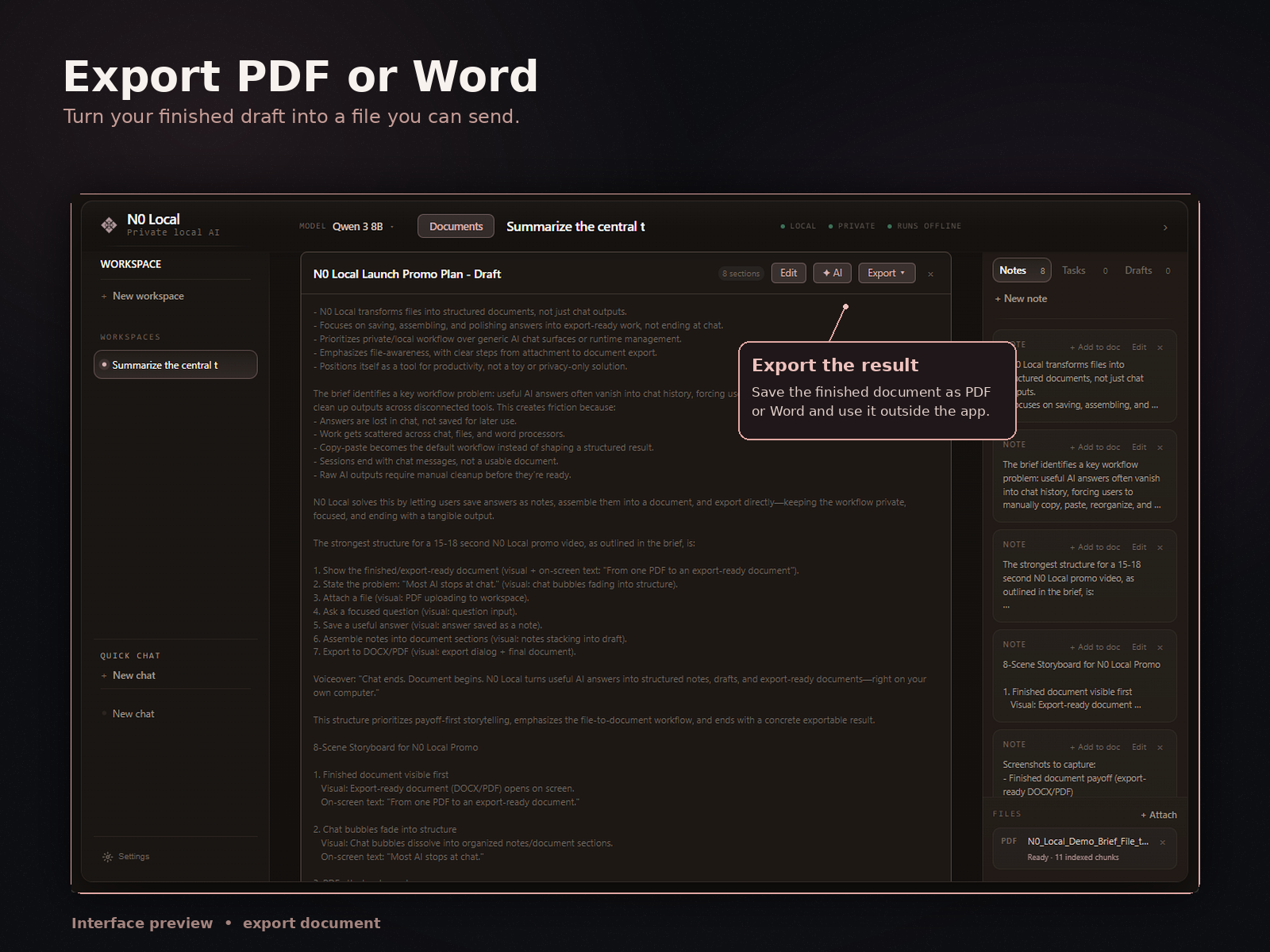
How N0 Local helps turn research material into a document
N0 Local is a private local AI workspace for Windows. It helps you attach source material, ask AI questions, save useful answers, collect saved outputs, assemble a real document, edit it, and export to Word or PDF.
The product is built for the work that happens between gathering research and finishing a document. PDFs, Word documents, notes, existing drafts, and reports can all contribute to the project without making chat the final destination.
Most AI tools stop at chat. N0 Local helps turn useful AI answers and source-based notes into working material for a document you control.
7-day free trial. No monthly subscription after purchase.
Useful draft types for this workflow
The same notes-to-draft process can support different kinds of document-heavy work:
- Literature summaries: organize findings around themes, questions, or areas of disagreement.
- Project briefs: collect background, constraints, decisions, and recommended next steps.
- Reports: arrange evidence and observations into sections for a specific audience.
- Essay outlines: turn research fragments into a sequence of claims and supporting material.
- Memos: bring the relevant context and analysis into a concise working structure.
- Technical articles: group explanations, examples, and source-based notes before writing the full piece.
These are starting points, not finished documents. The final structure and language still need your review, expertise, and judgment.
Honest limitations
AI can help summarize material, surface connections, suggest structure, and draft sections. It can also miss context, repeat weak assumptions, or produce statements that need checking.
N0 Local does not guarantee perfect writing or perfect citations, and it does not remove the need to review the sources. Verify important facts, names, numbers, quotations, and conclusions before using or sharing the draft.
A working draft is a stage in the writing process, not the finished result. You remain responsible for editing the document, resolving gaps, and deciding what the final version should say.
For related workflows, see how to turn AI answers into a Word document or ask questions about PDFs and save useful answers.
FAQ
Can N0 Local help turn research notes into a draft?
Yes. N0 Local helps you ask questions about source material, save useful AI answers, collect related outputs, assemble a working draft, edit it, and export it to Word or PDF.
Can I use PDFs, Word documents, notes, drafts, and reports as source material?
Yes. N0 Local is designed for document-heavy work with source material such as PDFs, Word documents, notes, drafts, and reports.
Can I save useful AI answers while researching?
Yes. You can save useful AI answers inside the workspace, collect the outputs you want to keep, and arrange them around the sections of your draft.
Can I export the draft to Word or PDF?
Yes. You can assemble and edit a working draft in N0 Local, then export it to Word or PDF for further editing or sharing.
Does N0 Local write the final document automatically?
No. N0 Local helps you develop and assemble a working draft, but you remain responsible for reviewing, editing, verifying important claims, and deciding what belongs in the final document.
Is N0 Local just another AI chatbot?
No. N0 Local is a private local AI workspace for Windows. It is built around source material, saved answers, document assembly, editing, and Word or PDF export rather than chat alone.
Give your research notes somewhere useful to go
Use N0 Local to save useful AI answers, collect research material, assemble a working draft, and export it to Word or PDF from your Windows PC.
7-day free trial. No monthly subscription after purchase.